
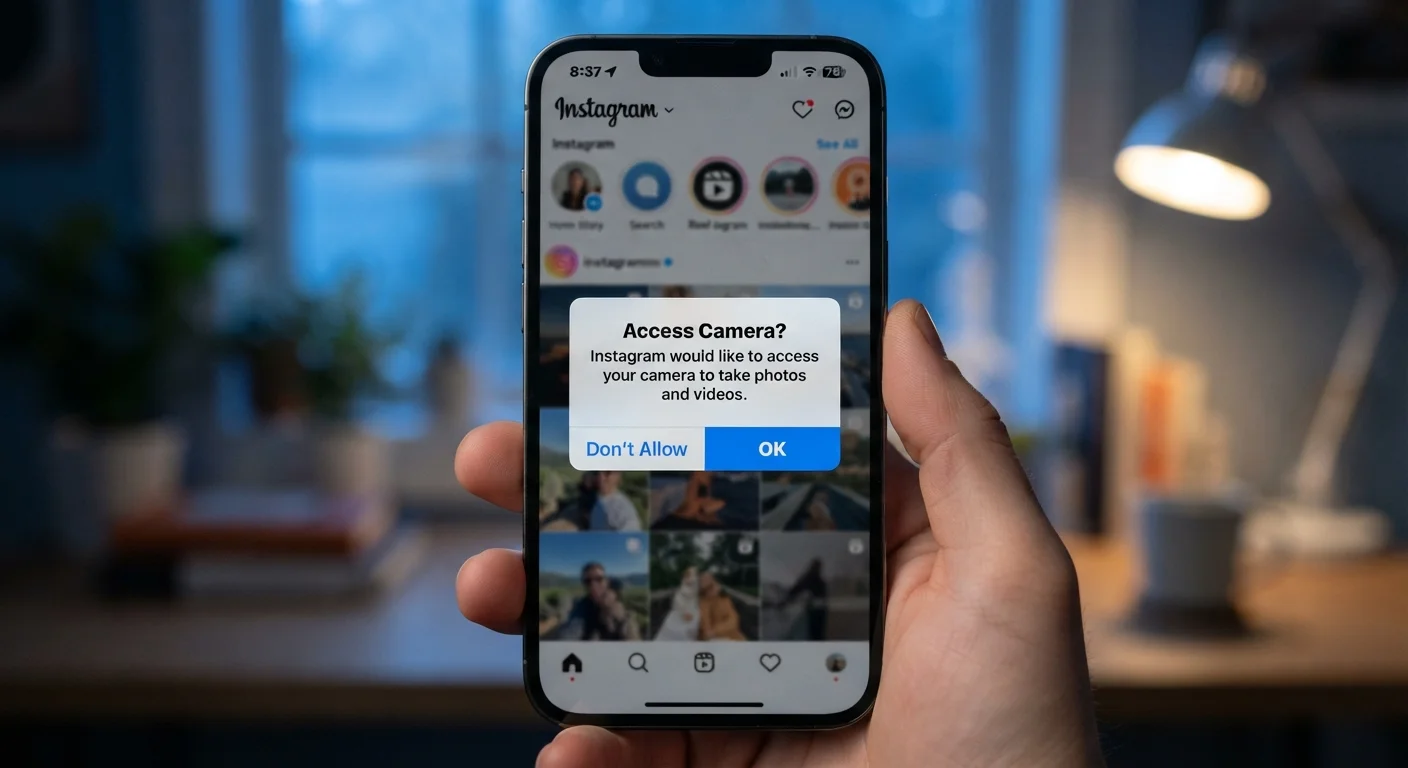
What App Permissions Actually Are
Every time you install a new app and tap Allow on a permission prompt, you're doing more than clicking through a formality. You're granting that app a specific, technical key to part of your phone - your camera hardware, your stored contacts, your GPS coordinates, or your microphone.
Permissions exist because smartphone operating systems - both Android and iOS - are designed around a model called least privilege. This means apps are blocked from accessing sensitive device features and personal data by default. They can only reach those resources if you explicitly grant permission.
The prompts appear the first time an app needs a given resource, and your answer is remembered. Granting permission once typically means the app retains that access until you revoke it manually.
The Most Common Permissions - Explained
Not all permissions carry the same weight. Understanding what each one actually unlocks helps you make faster, more confident decisions.
- Location: Gives the app access to where your device is, either precisely (GPS-level accuracy to within a few meters) or approximately (city or neighborhood level). Some apps offer a useful 'only while using' setting that stops background location tracking.
- Camera: Lets the app capture photos and video using your device's camera. Without this, the app can only access images you manually choose to import.
- Microphone: Allows the app to record audio. Any app that records sound, processes voice commands, or conducts calls legitimately needs this - others generally do not.
- Contacts: Exposes your entire address book, including names, phone numbers, email addresses, and any notes attached to entries - for every person you've saved, not just yourself.
- Storage / Photos: On older Android versions, broad storage access could read all files on the device. Newer Android and iOS versions now use more scoped permissions - granting access to specific photos you select rather than your full library.
- Notifications: Doesn't access personal data directly, but allows the app to push alerts to your lock screen and notification tray, which can affect your attention and privacy in shared spaces.
- Bluetooth & Nearby Devices: Used for connecting to accessories or other devices. Some apps have used this permission in ways beyond device pairing, such as location inference in venues with Bluetooth beacons.
If you're setting up a new smartphone, reviewing permission habits before downloading your first apps is a practical early step.
When to Tap Allow - and When to Say No
The clearest test is logical fit: does this permission match what the app is supposed to do?
A ride-sharing app needs location. A video chat app needs camera and microphone. A recipe app probably doesn't need either. When a permission feels disconnected from the app's purpose, that mismatch is a meaningful signal - it could indicate data collection that goes beyond the app's core function.
Try denying first - it costs nothing
Most apps function well without every permission they request. Tap 'Don't Allow' and explore the app; you'll quickly discover whether the denied permission was essential or optional. Granting access later takes just a few taps in your phone's settings, so there's little downside to starting cautious.
A few practical rules of thumb:
- Deny first, allow later if needed. Try the app without granting the permission. If a feature you actually want stops working, you can always grant access then.
- Prefer limited over full access. When offered a choice - such as 'precise' vs. 'approximate' location, or 'selected photos' vs. 'full photo library' - the narrower option is almost always sufficient.
- Be more cautious with unfamiliar apps. Established apps with large user bases have more public accountability. A little-known app requesting broad permissions warrants more scrutiny.
How to Review and Revoke Permissions You've Already Granted
Past decisions aren't permanent. Both major mobile platforms let you audit and change permissions at any time.
On iPhone (iOS): Go to Settings → Privacy & Security. Each permission category (Location Services, Camera, Microphone, Contacts, etc.) shows a list of apps with access. Tap any app to change its level.
Alternatively, go to Settings → scroll to a specific app → tap it to see and adjust all permissions for that app in one view.
On Android: Go to Settings → Privacy → Permission Manager. You can browse by permission type to see which apps have been granted each one. Tap any entry to revoke or adjust access.
A periodic audit - perhaps once every few months - is a low-effort habit that keeps your permission grants aligned with how you actually use your apps.
Deleted apps may leave permissions open temporarily
On some Android versions, permission records for deleted apps can persist briefly in system logs. If you've removed apps you no longer trust, it's worth double-checking your Permission Manager to confirm those entries are cleared. iOS handles this cleanup automatically when an app is uninstalled.
Permissions and Your Broader Privacy Picture
App permissions are one layer of a broader data ecosystem. When you grant an app access to your location or contacts, that data may be used within the app, stored on external servers, or shared with third-party advertising or analytics partners - depending on the app's privacy policy.
Permissions don't tell you what happens to data after it's collected; they only control whether collection can happen at all. For a fuller understanding of where your data goes once apps have it, our guide on your personal data footprint walks through the downstream picture.
Smart speaker users face a related set of questions about what devices hear and record. Our look at smart speaker privacy explains how voice-activated devices handle always-on listening differently from app-based microphone access.
Managing permissions thoughtfully is one of the most direct and effective actions you can take to shape how much of your daily life gets shared beyond your device.