Understanding Your Internet Options
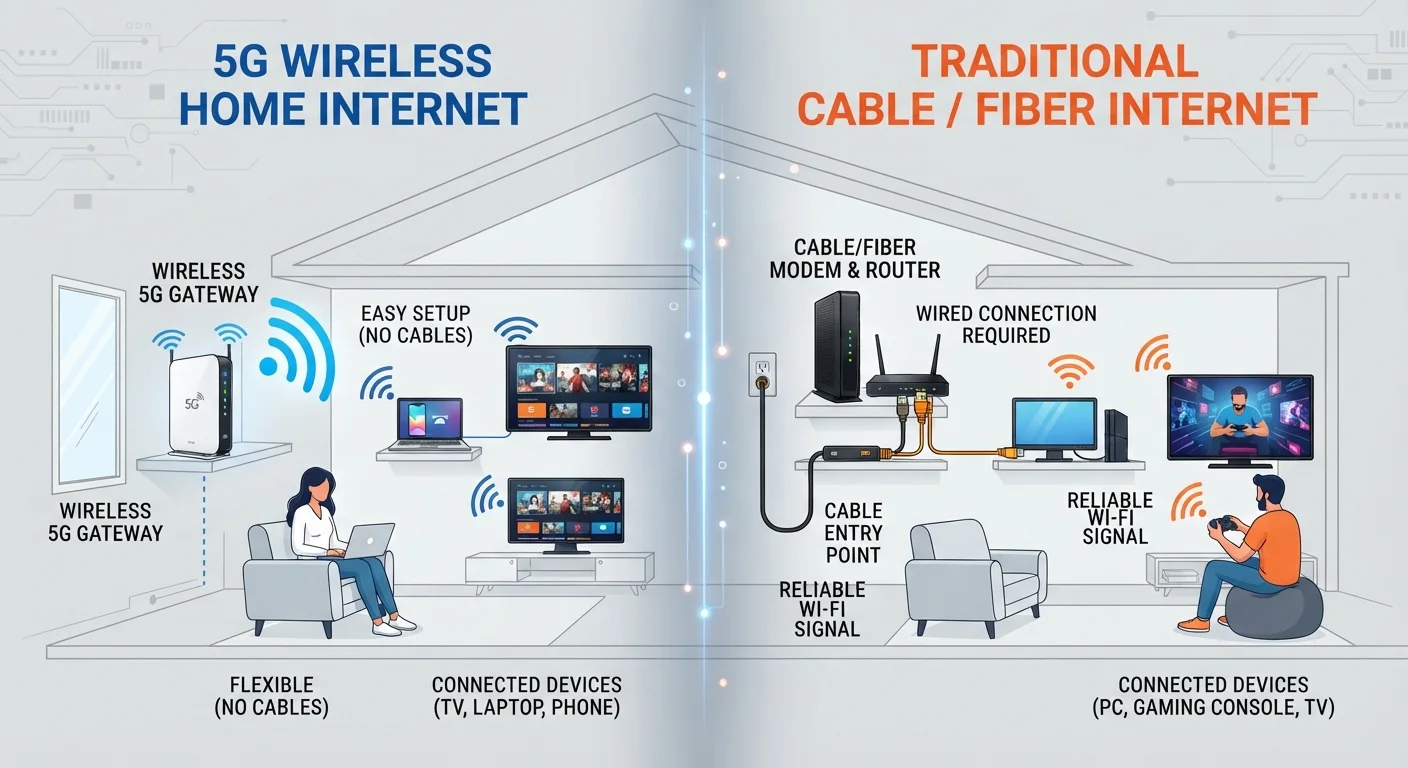
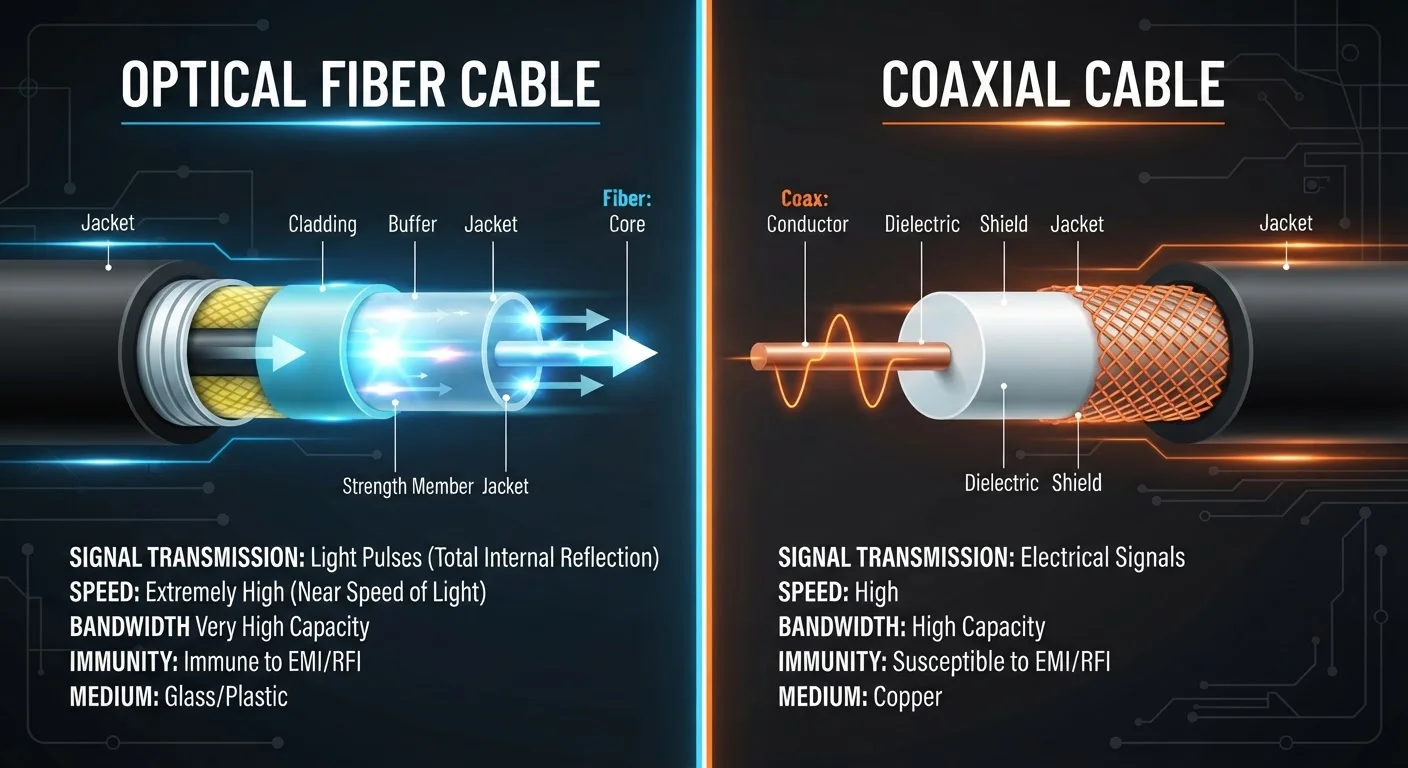
Before you call a provider or sign a contract, it helps to know what kind of internet connection is available at your address. The four main types are DSL (Digital Subscriber Line), cable, fiber, and satellite. Each uses different infrastructure and delivers different performance characteristics.
For a thorough breakdown of how these technologies compare, see our guide to home internet types. In brief: fiber generally offers the fastest and most consistent speeds; cable is widely available and capable for most households; DSL relies on older phone-line infrastructure and is typically slower; satellite reaches rural areas but often carries higher latency.
Availability depends entirely on your address. Use your zip code on provider websites to see which connection types are actually offered at your location before comparing plans.
Modem
A device that connects your home to your internet provider's network by translating the incoming signal into data your devices can read.
Router
A device that distributes your internet connection to multiple devices in your home, either wirelessly (Wi-Fi) or through ethernet cables.
Bandwidth
The maximum amount of data that can travel over your internet connection at one time, typically expressed in Mbps or Gbps.
Latency
The time it takes for data to travel from your device to a server and back, measured in milliseconds. High latency can cause lag in video calls or online games.
SSID
The name of your Wi-Fi network - what you see when you search for available Wi-Fi connections on a phone or laptop.
WPA3
A current Wi-Fi security standard that encrypts data traveling over your network, making it harder for unauthorized users to intercept.
Choosing the Right Plan for Your Household
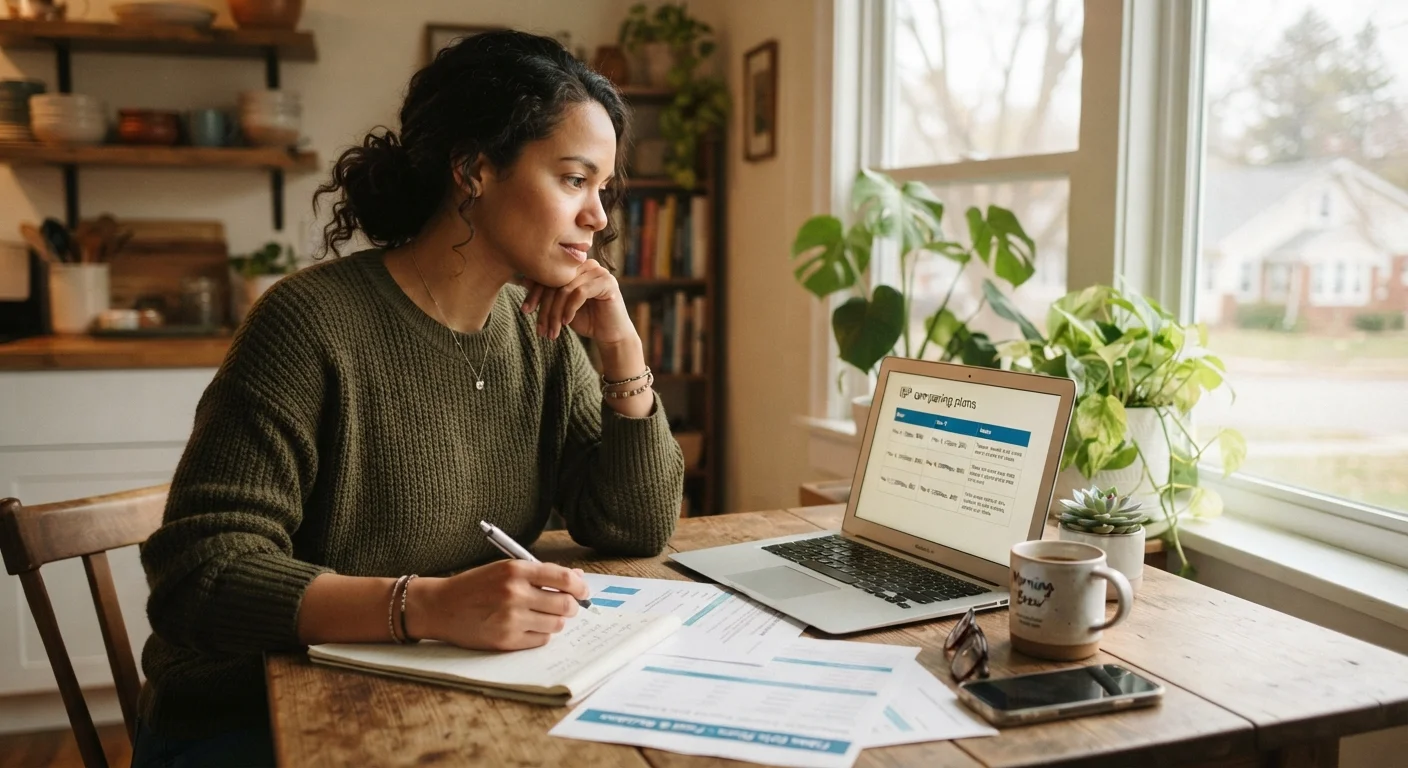
Internet plans are sold in tiers, usually defined by download speed - measured in megabits per second (Mbps) or gigabits per second (Gbps). Upload speed matters too, especially if anyone in your household works from home, video calls frequently, or uploads large files.
A useful starting point: count the number of people and connected devices in your home. Streaming a 4K video typically requires around 25 Mbps per stream; video calls need 3-5 Mbps upstream. Add a reasonable buffer for background activity from smart TVs, phones, and smart home devices running simultaneously.
Also review the contract terms carefully. Look for data caps (monthly limits on how much data you can use), promotional pricing that may increase after an introductory period, and early termination fees. If you're a first-time renter setting up your first home, our first-time renter's guide covers other utility setup considerations worth reading alongside this one.
Ask About Contract Flexibility Before Signing
Many providers offer both contract and month-to-month plans. If you're new to an area or unsure about your long-term needs, a month-to-month plan gives you the freedom to switch if service quality doesn't meet expectations. Just confirm whether introductory pricing applies only to contract plans.
Setting Up Your Equipment
Once your plan is active, you'll need a modem and a router - or a combined gateway device. Your provider may supply one or offer a rental; alternatively, you can purchase compatible equipment separately. Buying typically costs more upfront but saves on monthly rental fees over time.
Setup steps vary by provider, but the general process is consistent:
- Connect the modem to the coaxial or phone-line wall outlet using the appropriate cable.
- Plug the modem into a power source and wait for it to establish a connection (indicator lights will signal when it's ready).
- Connect the router to the modem via an ethernet cable, then power on the router.
- Use the instructions included with your router - or your provider's app - to complete the initial configuration, including setting your Wi-Fi network name (SSID) and password.
If your provider supplies a technician for installation, they'll handle the physical connections - but you should still complete the Wi-Fi naming and security setup yourself afterward.
Optimizing Router Placement
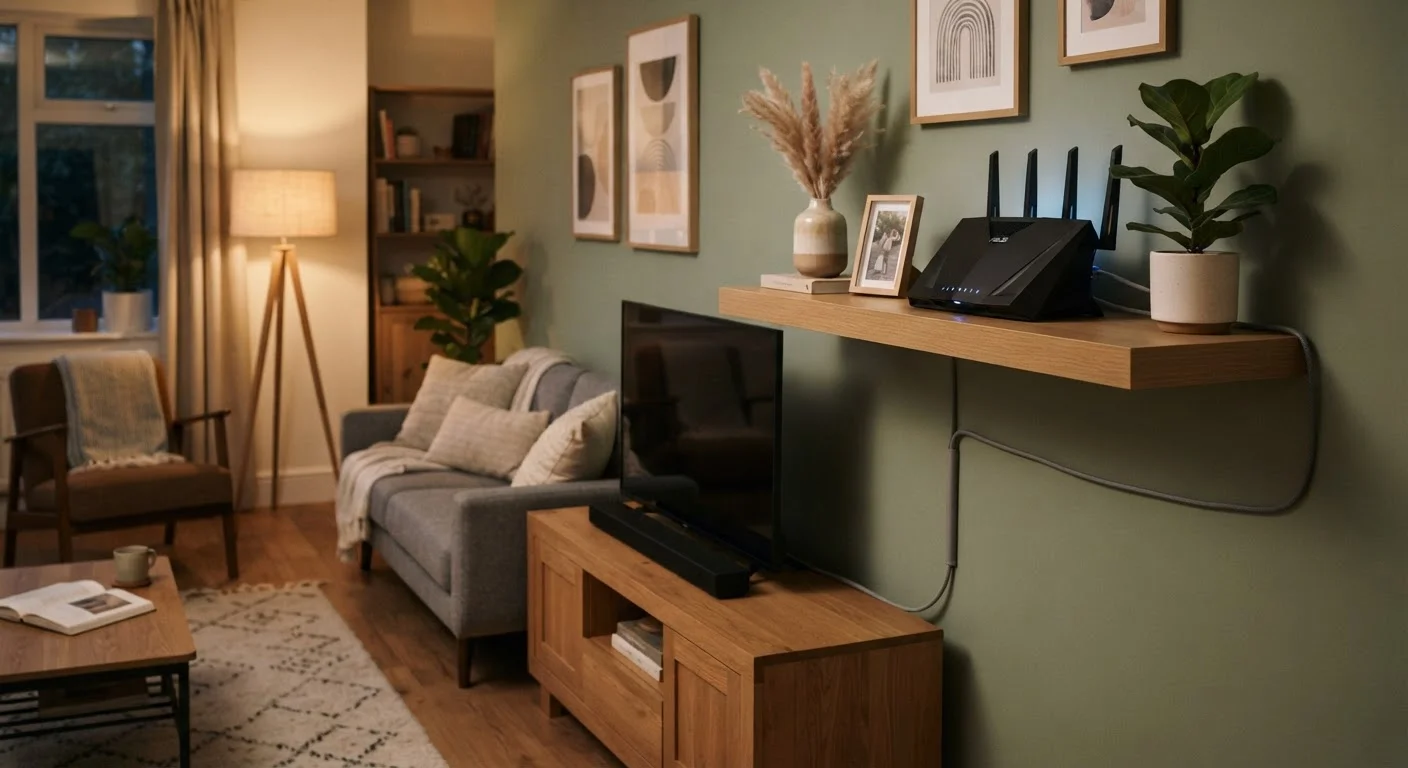
Where you put your router has a direct impact on the Wi-Fi coverage you experience throughout your home. Wi-Fi signals travel outward in all directions from the router, losing strength as they pass through walls, floors, and interference sources.
Practical placement principles:
- Central location: A router at the center of your home reaches more rooms than one placed at an edge or corner.
- Elevated position: Placing the router on a shelf or counter rather than the floor improves signal spread.
- Open space: Avoid enclosing the router in a cabinet or closet, which significantly weakens signal.
- Away from interference: Keep the router away from microwaves, cordless phone bases, and large metal appliances, which can disrupt the 2.4 GHz frequency band.
If you have a multi-story home or a large floor plan, a mesh Wi-Fi system - which uses multiple nodes placed around the home - can extend coverage more effectively than a single router. If you're also settling into a new home, our home improvement primer for new owners covers thinking through your home's layout systematically.
Securing Your Wi-Fi Network
A default router configuration is rarely a secure one. Most routers ship with generic admin credentials that are publicly documented and easy to guess. Before connecting any devices, take these foundational security steps:
- Change the admin password: Log into your router's admin panel (the address is usually printed on the router, often 192.168.1.1 or 192.168.0.1). Replace the default username and password with something unique.
- Set a strong Wi-Fi password: Use a passphrase of at least 12 characters mixing letters, numbers, and symbols. Avoid using your name, address, or common words.
- Enable WPA3 or WPA2 encryption: In your router's wireless settings, confirm the security protocol is set to WPA3 (preferred) or WPA2. Older protocols like WEP are vulnerable and should not be used.
- Update router firmware: Check the admin panel for firmware updates and apply them. Manufacturers release these to patch known security vulnerabilities.
For a deeper look at protecting your home network, see our guide on reducing your Wi-Fi network's exposure. As you get more comfortable online, our online safety resources cover privacy, account protection, and more.
Never Leave Default Router Credentials in Place
Default admin usernames and passwords for popular router models are widely published online. Leaving them unchanged makes it easy for anyone on your network - or with physical access to your router - to alter your settings. Changing these credentials on day one is one of the most impactful security steps you can take.