
Storage vs. RAM: Two Very Different Things
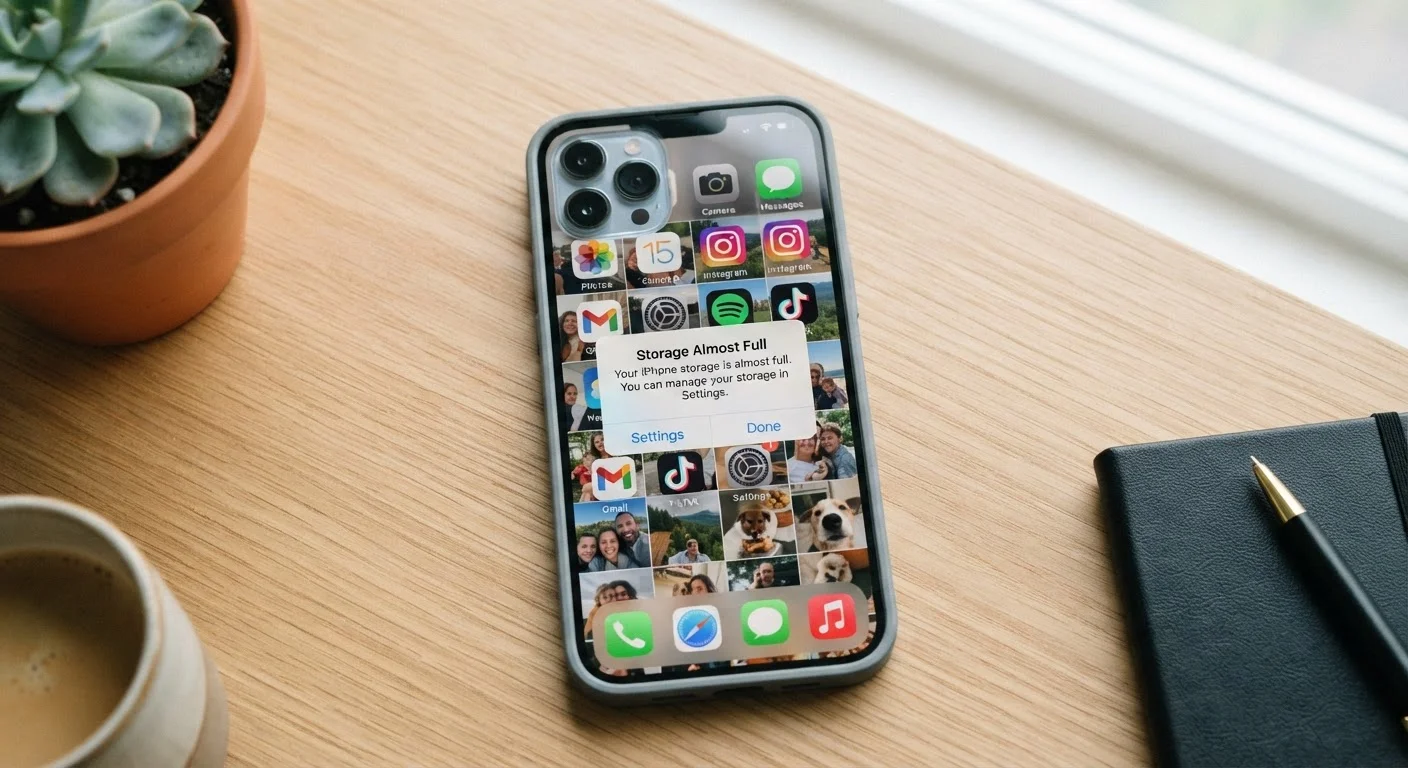
When your phone flashes a "storage full" warning, many people assume something is wrong with the device itself. In most cases, it's a straightforward space problem - not a malfunction. Understanding two basic terms clears up a lot of confusion.
Storage is your phone's long-term memory. Everything you've ever downloaded, photographed, or installed lives there: apps, music files, videos, documents, and the phone's own operating system. It's permanent - it stays put whether your phone is on or off.
RAM (Random Access Memory) is your phone's short-term workspace. It holds whatever the phone is actively running right now - the app on your screen, processes running in the background. When you close an app or restart the phone, RAM clears. RAM being low might make your phone feel sluggish; storage being full means it literally cannot save anything new.
Storage and RAM Are Not the Same
Phone specs list both storage and RAM as numbers in gigabytes, which makes them easy to confuse. Storage holds your files permanently; RAM handles active processes temporarily. A "storage full" warning has nothing to do with RAM, and adding or clearing RAM won't resolve it.
Confusing the two is common, and phone manufacturers don't always make the distinction obvious. When you see specs like "128GB storage, 8GB RAM," those numbers refer to completely separate components serving different purposes.
What Actually Fills Up Your Storage
Storage doesn't disappear all at once. It fills gradually, often without you noticing, until one day the phone refuses to take a photo. Here's where the space typically goes:
- Photos and videos: Modern smartphone cameras shoot at high resolutions. A single minute of 4K video can consume 400-500 MB. Hundreds of casual snapshots from a year's worth of events add up fast.
- App cache: Every time you use an app - a browser, a streaming service, a social media platform - it saves temporary files to load content faster next time. These caches grow silently over months.
- Apps themselves: Many apps are small at install time but grow considerably as they update and store user data. A social media app might install at 50 MB but occupy several hundred MB after regular use.
- Downloads and offline content: Podcasts, offline maps, downloaded shows for travel - these are easy to forget about once you're back online.
- System files and updates: The phone's operating system and app updates require temporary space to install, which can temporarily spike storage use.
4-8 MB
Typical size of one high-resolution smartphone photo
Modern flagship phones shoot at resolutions that produce image files significantly larger than those from phones made just five years ago.
~400-500 MB
Storage used per minute of 4K smartphone video
Recording video at maximum quality settings is the fastest way to consume phone storage, often filling devices within hours of active filming.
10-15%
Recommended minimum free storage to maintain
Keeping this buffer allows the operating system to write temporary files and perform background maintenance without performance degradation.
To see exactly what's consuming your storage, go to Settings > Storage on Android, or Settings > General > iPhone Storage on iOS. Both show a clear breakdown by category.
What You Can Safely Clear - and What to Keep
The first instinct when storage runs low is to delete apps or photos at random. A more deliberate approach protects things you actually want while recovering real space.
Safe to clear:
- App cache: Clearing cache through Settings removes temporary files without touching your personal data. Do this for browsers, streaming apps, and social media first - they accumulate the most.
- Downloaded media: Check your music, podcast, and video apps for offline downloads you no longer need.
- Duplicate or blurry photos: Most phones now have a built-in tool to identify duplicates. Removing them can recover surprising amounts of space.
Be careful with:
- App data (not cache): Clearing app data - as opposed to cache - resets the app to a blank state, deleting logins and saved settings.
- Photos generally: Before deleting photos, verify they are backed up. Consider using a cloud backup service, as explained in our article on how cloud storage actually works.
If you're setting up a new device and want to avoid this problem from the start, our guide on what to do before downloading anything covers storage-smart setup habits.
Quick Check: See Your Storage Breakdown
On Android, go to Settings > Storage to see a color-coded breakdown by category. On iPhone, navigate to Settings > General > iPhone Storage for a similar view with individual app sizes listed. Checking this once a month takes under a minute and helps you spot problems before they become urgent.
A Note on Cloud Storage and Mobile Data
Backing up to the cloud is a practical solution, but it comes with a trade-off worth knowing. Cloud backup services - whether iCloud, Google Photos, or others - upload your files over the internet. If you're not careful about settings, that upload happens over your mobile data plan, not just Wi-Fi.
Check that your backup app is set to upload on Wi-Fi only. This protects your data allowance and avoids unexpected overage charges. For more on managing data usage thoughtfully, see our piece on habits that keep you within your mobile data plan.
Also remember: cloud backup and cloud storage are not the same as freeing up local storage. Your photos remain on the phone until you actively delete the local copies - usually through an option labeled something like "Free Up Space" or "Remove Downloaded Copies" within the app itself.